
A page can be live, look perfect and still never appear on Google. When that happens, the problem is almost always indexing. Google either hasn’t found the page, has found it but decided not to store it, or has been told to leave it out.
Google indexing is the step where Google stores a page in its index, the huge database it searches when someone types a query. If a page isn’t in the index, it can’t show up in search results, no matter how good it is.
In this guide I’ll explain how indexing works in plain terms, how to check whether a page is indexed and what to do when it isn’t. I’ll keep the jargon to a minimum and stick to what Google itself says about the process.
How Google indexing works
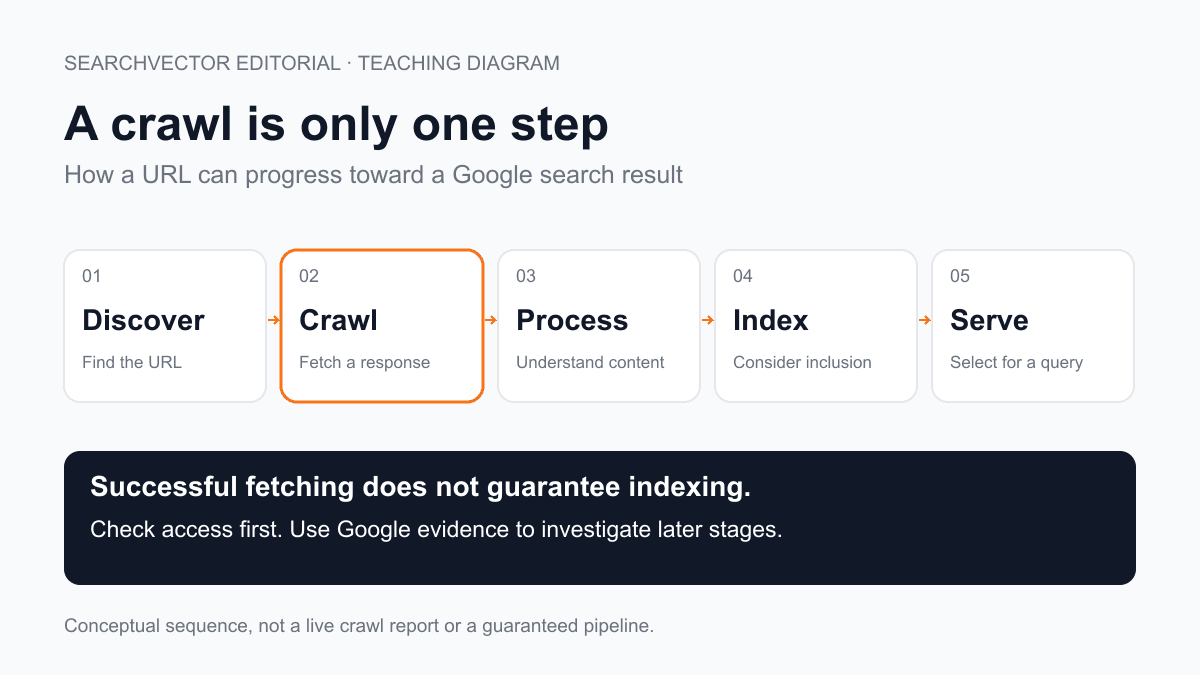
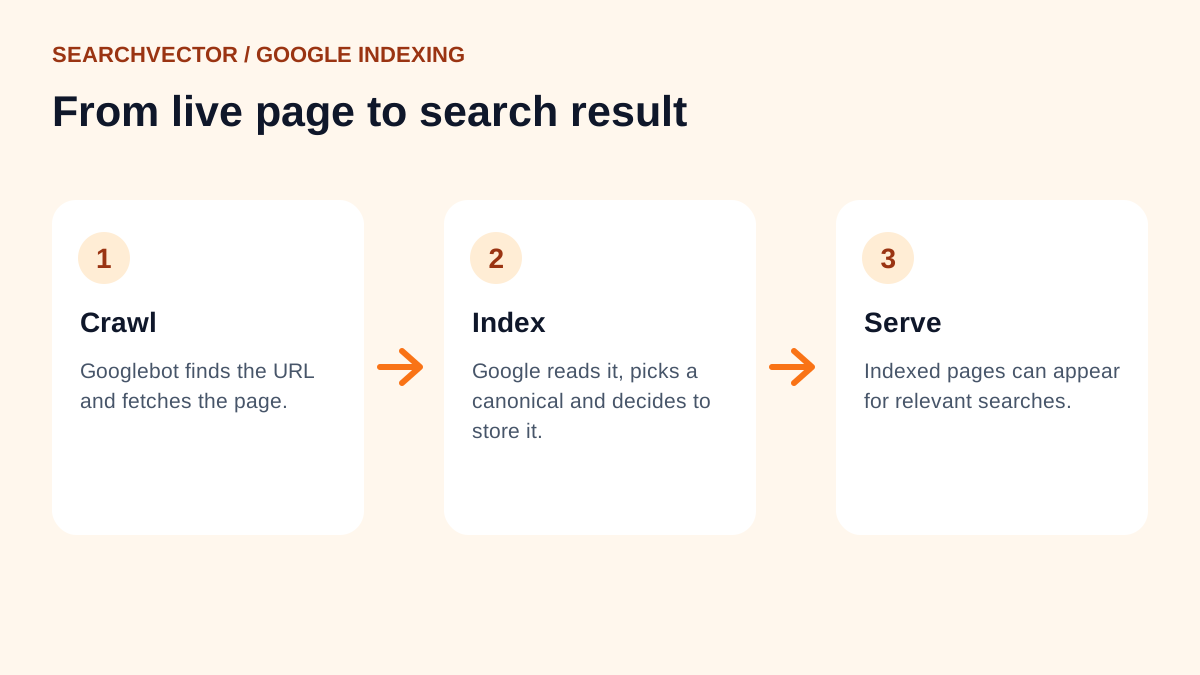
Google describes search as three stages: crawling, indexing and serving results. It helps to picture them as a queue.
1. Crawling: Google finds the page
Google’s crawler, Googlebot, discovers URLs by following links from pages it already knows and by reading sitemaps. It then fetches the page, much as your browser does. If Googlebot can’t reach a URL, because it’s blocked or returns an error, the process stops here.
2. Indexing: Google reads and stores it
Next, Google processes what it fetched. It reads the text, titles, headings, images and links. It renders the page to see content added by JavaScript. It also checks whether the page is a duplicate of another one and picks a canonical version to keep.
Then it decides whether to store the page. This is the part people miss: being crawled doesn’t mean being indexed. Google doesn’t promise to index every page it crawls.
3. Serving: Google shows it in results
Once a page is in the index, it can appear when someone searches for something relevant. Where it ranks is a separate question that depends on relevance, quality and many other signals.
How to check if a page is indexed
There are three easy ways. I usually start with the quickest and move on if the answer isn’t clear.
Use a site: search
Type site:example.com/your-page into Google, using your own URL. If the page appears, it’s indexed. If it doesn’t, it might not be, but this check isn’t perfect. Treat it as a rough first look.
Use the URL Inspection tool in Search Console
This is the most reliable check because it comes from Google directly. In Google Search Console, paste the URL into the search bar at the top. It tells you whether the URL is on Google and, if not, why. You need to have verified the site first.
Work through the checks
If a page is missing, our free Google index checker maps the checks to run, from discovery to crawling to indexing, so you can find where the page drops out.
Why a page isn’t indexed, and how to fix it
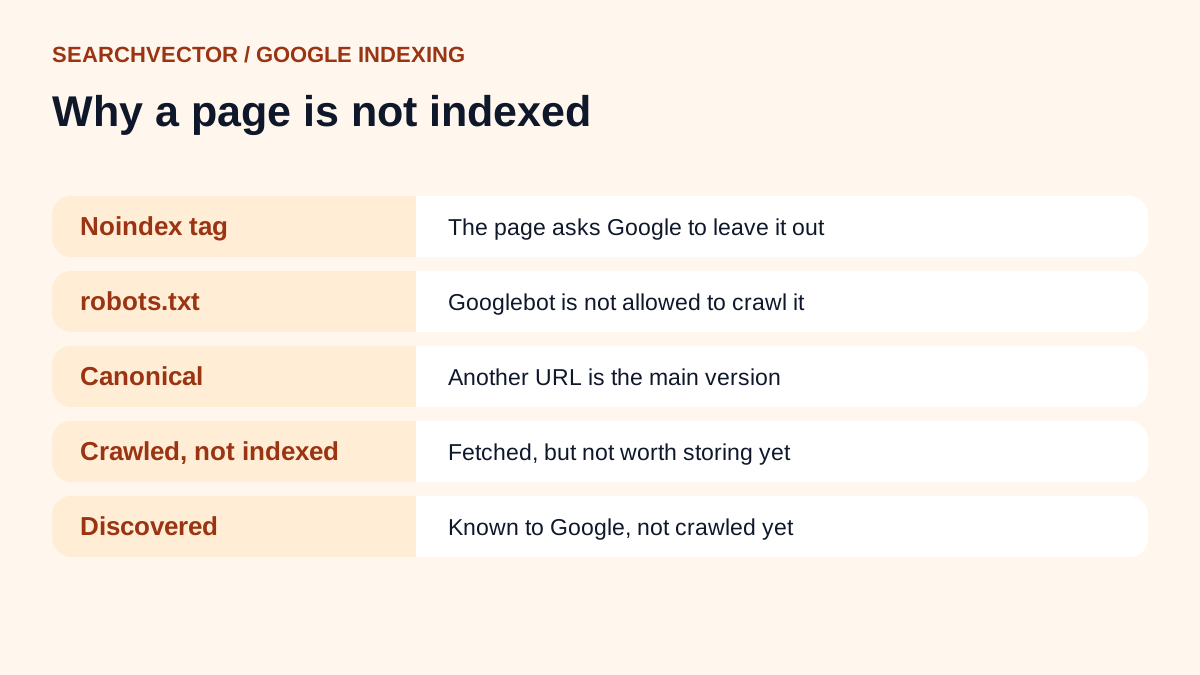
Search Console’s Page indexing report groups non-indexed pages by reason. These are the ones I see most often, with what each one means in plain words.
Excluded by ‘noindex’ tag
The page tells Google not to index it. That’s fine for thank-you pages or internal search results. If it’s a page you want in search, remove the noindex tag. This often happens when a site moves from a staging setup to live and the tag is left behind.
Blocked by robots.txt
Your robots.txt file stops Googlebot from crawling the URL. Check the rule with our robots.txt tester and remove it if the page should be crawled. One catch: robots.txt controls crawling, not indexing. If you want a page kept out of search, use noindex and let Google crawl it so it can see the tag.
Alternate page with proper canonical tag
The page points to another URL as the main version, and Google agrees. That’s usually correct, for example with tracking parameters. If it isn’t intended, fix the canonical tag. Our canonical checker shows what a page declares.
Duplicate without user-selected canonical
Google thinks this page is a copy of another one and chose a different version to index. Either add a canonical tag pointing to the version you prefer or make the page clearly different.
Crawled - currently not indexed
Google fetched the page but decided not to store it, at least for now. This usually comes down to the page not adding enough. It’s thin, very similar to other pages or not clearly useful. Improving the content and linking to it from relevant pages is the fix that works most often.
Discovered - currently not indexed
Google knows the URL exists but hasn’t crawled it yet. On a small site, patience and a few internal links usually solve it. On a large site, it can be a sign that Google is spending its crawling on less important URLs.
Page with redirect, Not found (404) and Soft 404
A redirecting URL isn’t indexed itself, which is normal. A 404 means the page is gone. A soft 404 means the page loads but looks empty or like an error. Check the status with our URL status code checker and fix any page that should be live.
How to get a page indexed faster
You can’t force Google to index a page, but you can make it easy to find and worth keeping.
- Link to it from pages Google already visits. A new page with no internal links is hard to discover.
- Add it to your XML sitemap and submit the sitemap in Search Console. Our sitemap generator helps you plan one.
- Request indexing in the URL Inspection tool once the page is ready. Doing it repeatedly doesn’t speed things up.
- Make it worth indexing. Answer the search better than the pages already ranking, with original detail.
- Check the basics: no noindex tag, not blocked in robots.txt and a correct canonical.
Indexing mistakes I see often
- Leaving a site-wide noindex on after launch.
- Blocking CSS or JavaScript files that Google needs to render the page.
- Publishing hundreds of near-identical pages and wondering why few get indexed.
- Expecting every tag, filter and search page to be indexed.
- Requesting indexing for a page that has no internal links.
Frequently asked questions
1. What does it mean to index a webpage?
It means a search engine has crawled the page, processed its content and stored it in its database. Only indexed pages can appear in search results.
2. How long does Google take to index a new page?
Google’s recrawl guide says crawling can take anywhere from a few days to a few weeks. Well-linked pages on established sites are often indexed faster. There’s no fixed timeline.
3. Is crawling the same as indexing?
No. Crawling is Google fetching the page. Indexing is Google deciding to store it. A page can be crawled and still not be indexed.
4. Does every page on my site need to be indexed?
No. Login pages, thank-you pages, internal search results and filtered duplicates usually shouldn’t be. Focus on getting the pages people would actually search for indexed.
5. Can I remove a page from Google’s index?
Yes. Add a noindex tag and let Google recrawl the page, or remove the page so it returns a 404 or 410. For an urgent case, Search Console’s Removals tool hides a URL temporarily.